NOTE: originally posted in May 2022 Software versions maybe be incompatible with modern setups
Are you a digital creative that wants to make your very own NeRF captures?
The set-up may seem intimidating at first, but don’t worry, we’re going to guide you, step by step.
So even if you don’t have a computer science degree, you’ll be able to set up your own Instant NeRF environment on your Windows machine.
This process could take up the 90 minutes. We recommend taking your time to carefully read and do each step.
Here are the 3 key steps to the process:
- Part I: Installing the software requirements
- Part II: Command line and transferring files
- Part III: Testing the program
By the end of this tutorial, you will be ready to start making your own NeRF captures.
3 Tips for a successful NeRF install
- Quickly glance over all the steps below, so you have a rough idea of what to expect.
- For best results, perform these steps in the exact order and use the exact versions of the software used in this tutorial. Not all versions of the software are compatible (including the newer versions)
- If you already have any other versions of the software mentioned below, you may want to uninstall them. For example, if you already have Visual Studio 2022, you might want to uninstall it before installing Visual Studio 2019.
Hardware and Operation System Requirements
- A computer with an NVIDIA GPU. (All results shown come from a RTX 3060)
- Windows 10 or 11
Software You Will Need + Download Links
For reference, here is the complete list of software we will download and install:
- Visual Studio Community 2019
- CUDA Toolkit 11.6 Downloads | NVIDIA Developer
- Anaconda | Anaconda Distribution
- Optix SDK 7.4.0
- Git
- Python Release Python 3.9.7
- CMake 64 bit 3.22.2
- COLMAP 3.7
- OpenEXR-1.3.2-cp39-cp39-win_amd64.whl (optional)
PART I: Installing the Software Requirements
Step 1: Install Visual Studio 2019
Download Visual Studio Community 2019.
This will be used to build our Instant NeRF application. If you have a different version of Visual Studio you may need to uninstall it and then install Visual Studio 2019.
You may be prompted to sign in using a Microsoft Outlook Account. After signing in, expand the section titled “2019” and click the purple ‘Download’ button. Be sure that you click the button for 2019 and *not* the button for the latest Visual Studio 2022.

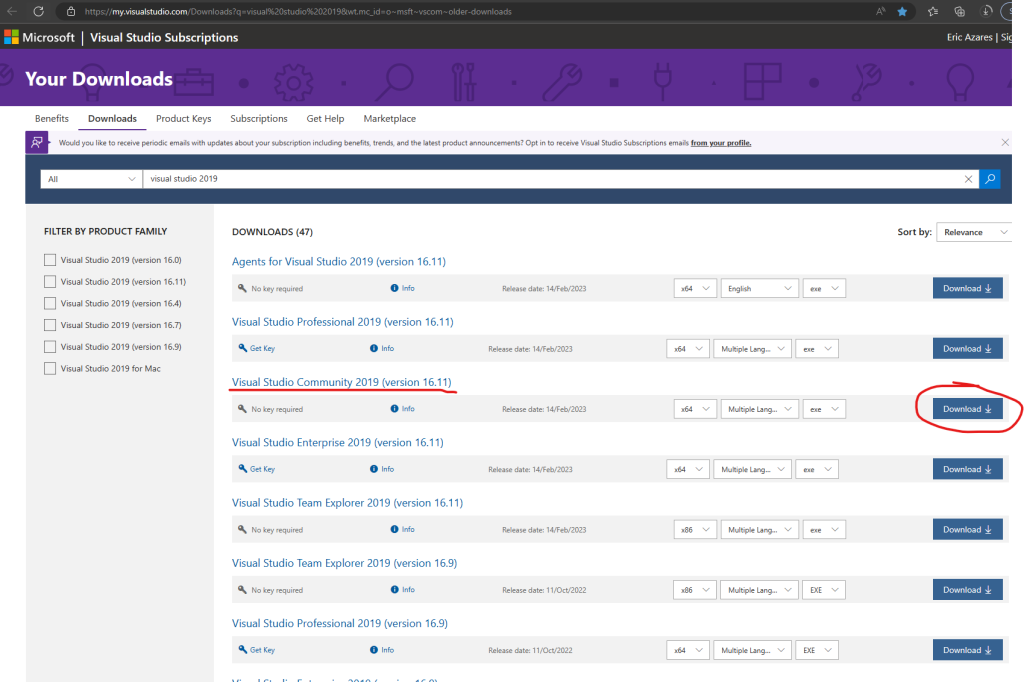
You will now arrive at a list of download options. Look for Visual Studio Community 2019 (version 16.11) and click Download.
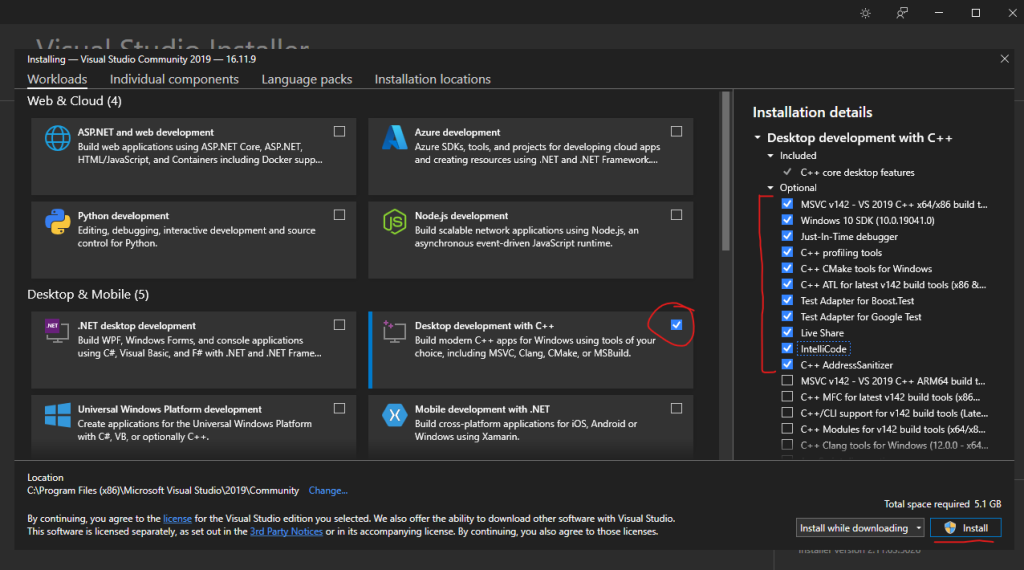
After downloading the installer, ensure that “Desktop development with C++” is checked, along with all the options in the screenshot below. Install using all the default settings.
Step 2: Install CUDA 11.6
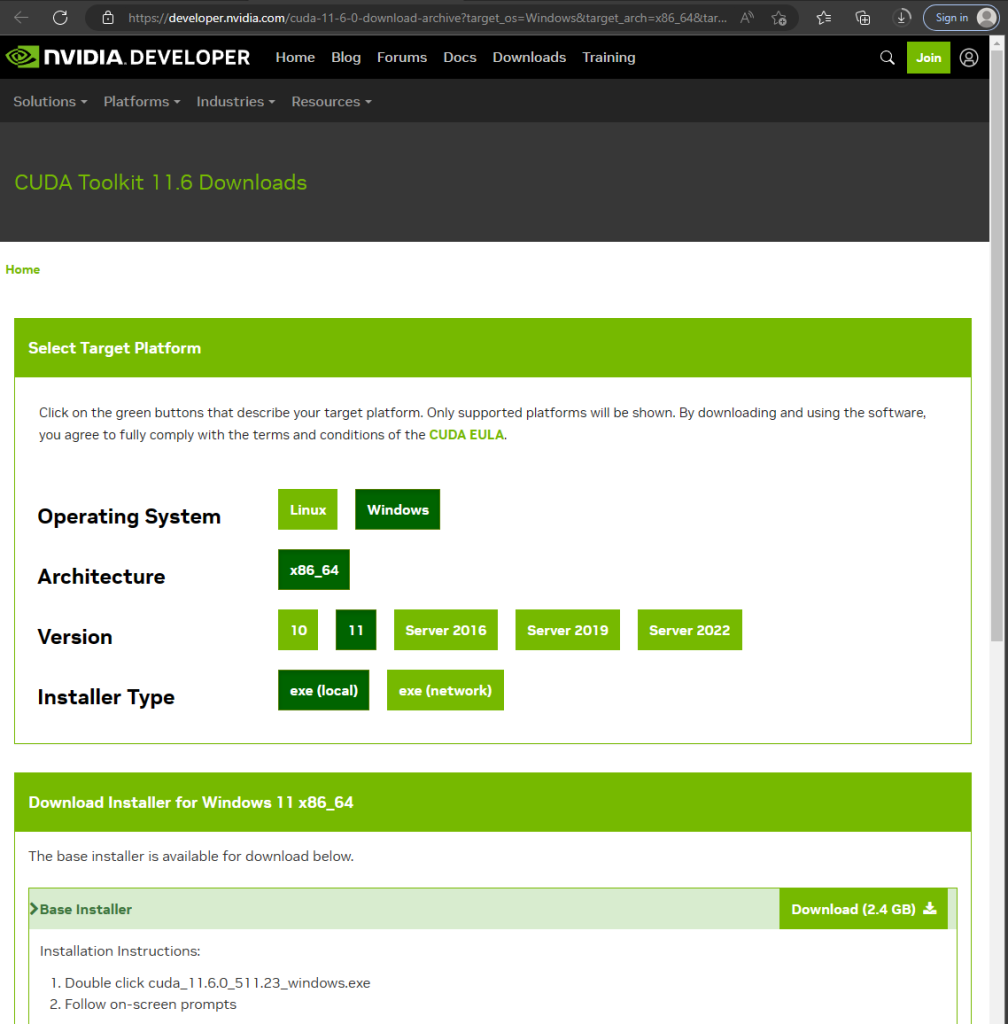
Download CUDA Toolkit 11.6
CUDA is a set of tools used for building applications that run on NVIDIA GPUs. If you have a later version, you must still install CUDA 11.6. Install using all the default settings.
Step 3: Install Anaconda
Download Anaconda.
This program will help us manage and install Python 3.9 later. The Anaconda command prompt will also be used later when ever want to launch Instant NeRF. Install using all the default settings.

Step 4: Install Optix 7.4.0
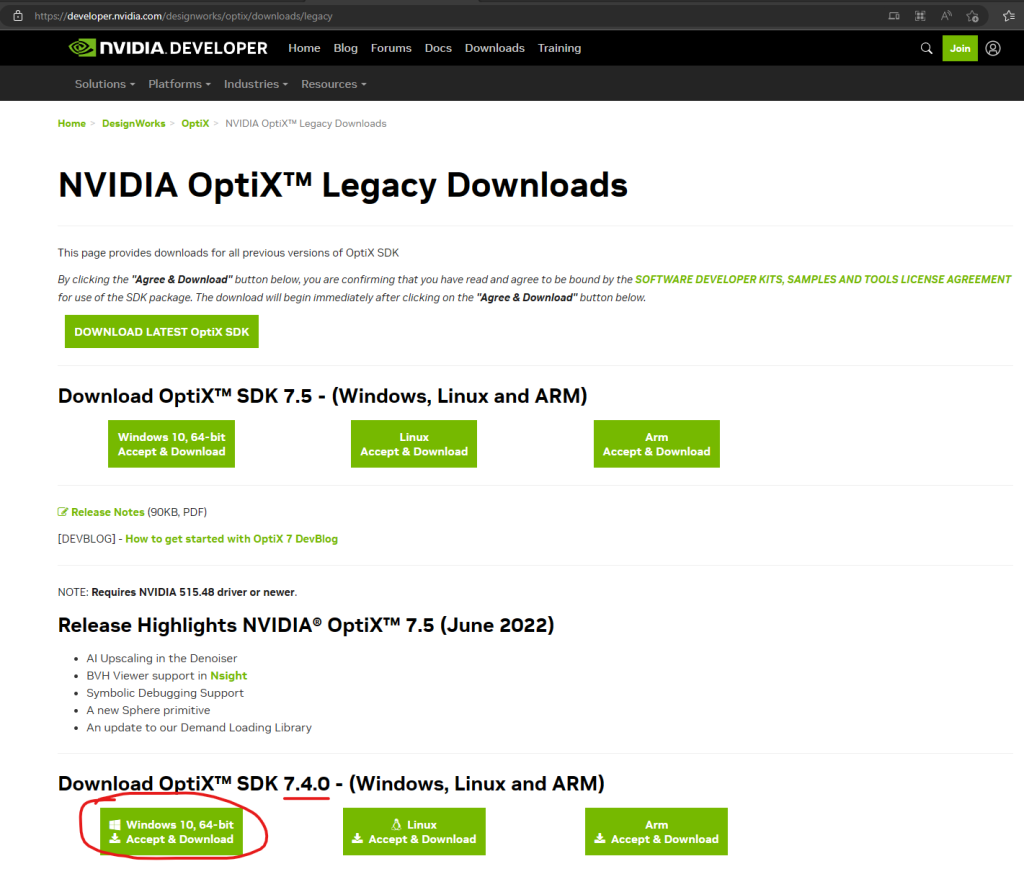
Download Optix SDK 7.4.0
NVIDIA Optix is a ray tracing framework necessary for building applications that run on NVIDIA GPUs. Optix will help us render our NeRFs.
To download Optix, you will be prompted to make a free NVidia account. Go through the sign up process. If you have Windows 11, you can still go ahead and download the Windows 10, 64-bit option. Install using all the default settings.
Step 4: Set System Environment Variables
We will need to manually set system variable for Optix to work properly.
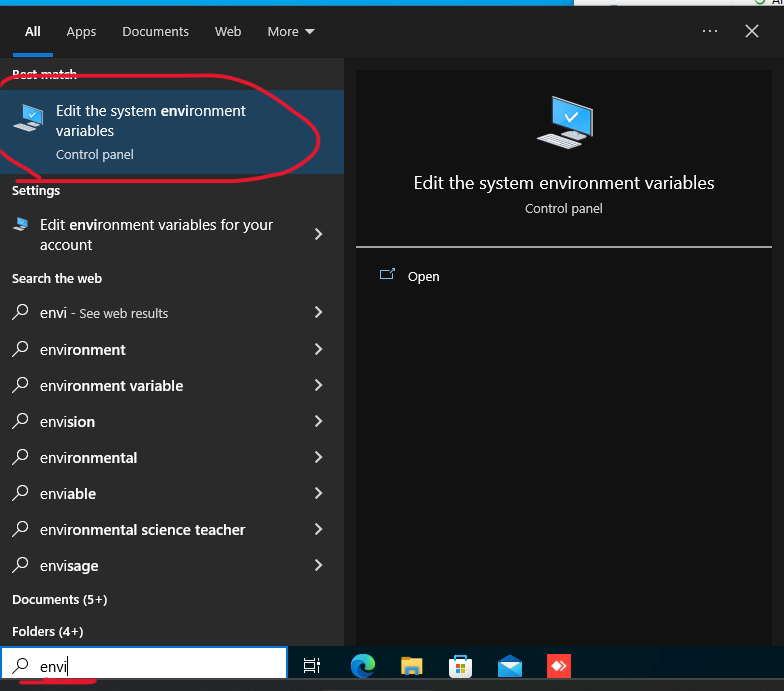
Go to your windows search bar and start typing in “environment”. You’ll see “Edit the system environment variables” come up. Click on it.
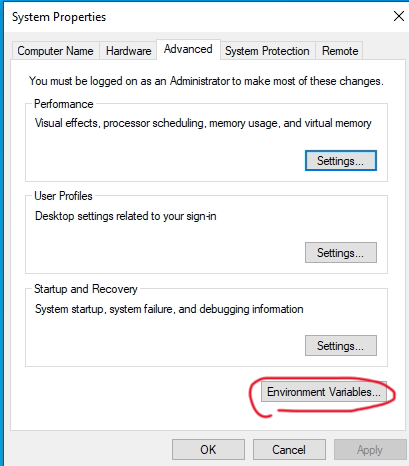
Click Environment Variables
Click “New”
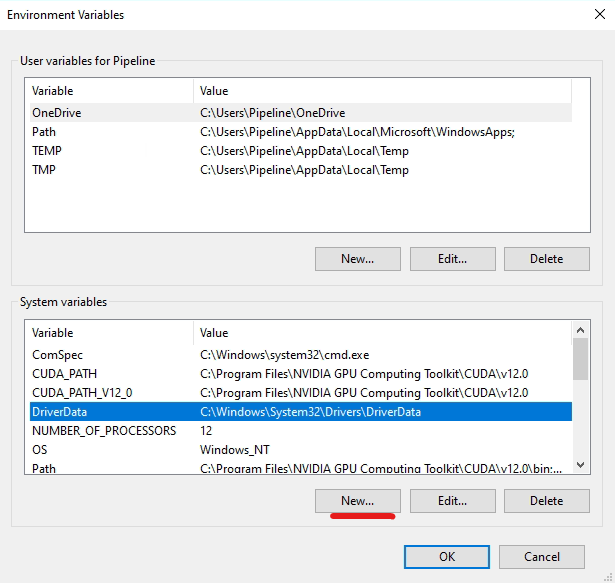
Create a new system variable by typing in the exact variable name and value:
Variable Name: OptiX_INSTALL_DIR
Variable Value: C:\ProgramData\NVIDIA Corporation\OptiX SDK 7.4.0
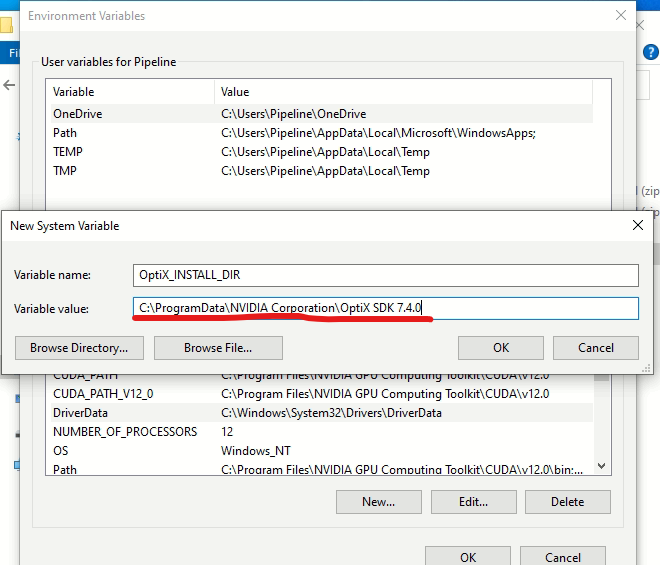
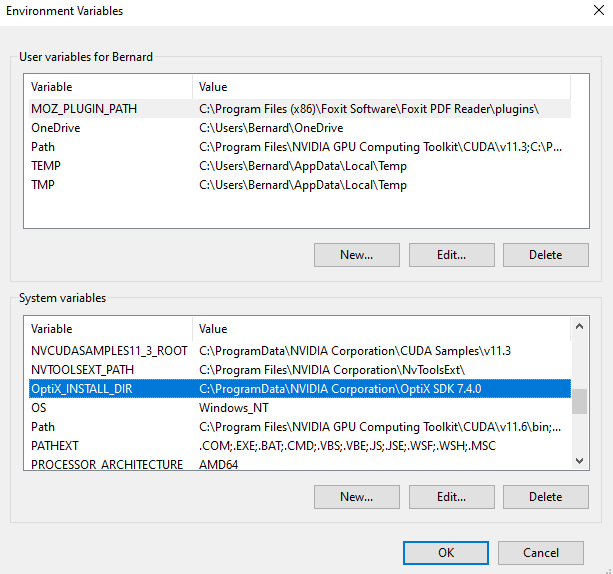
Click all the “OK”s to save and close out the windows.
Part II: Command Lines and Folders
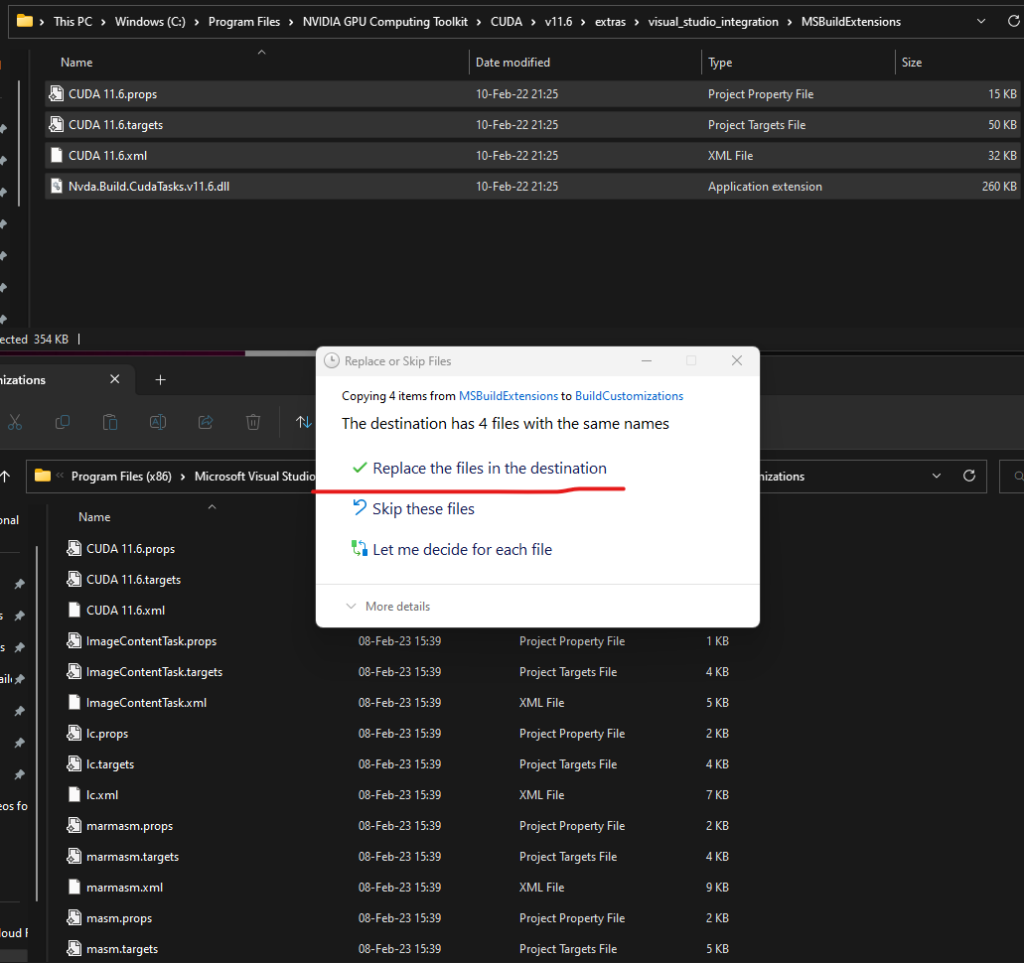
Step 5 Copy Files from CUDA to Visual Studio folder
Navigate to:
copy these files C:\Program Files\NVIDIA GPU Computing Toolkit\CUDA\v11.6\extras\visual_studio_integration\MSBuildExtensions
to
C:\Program Files (x86)\Microsoft Visual Studio\2019\Community\MSBuild\Microsoft\VC\v160\BuildCustomizations
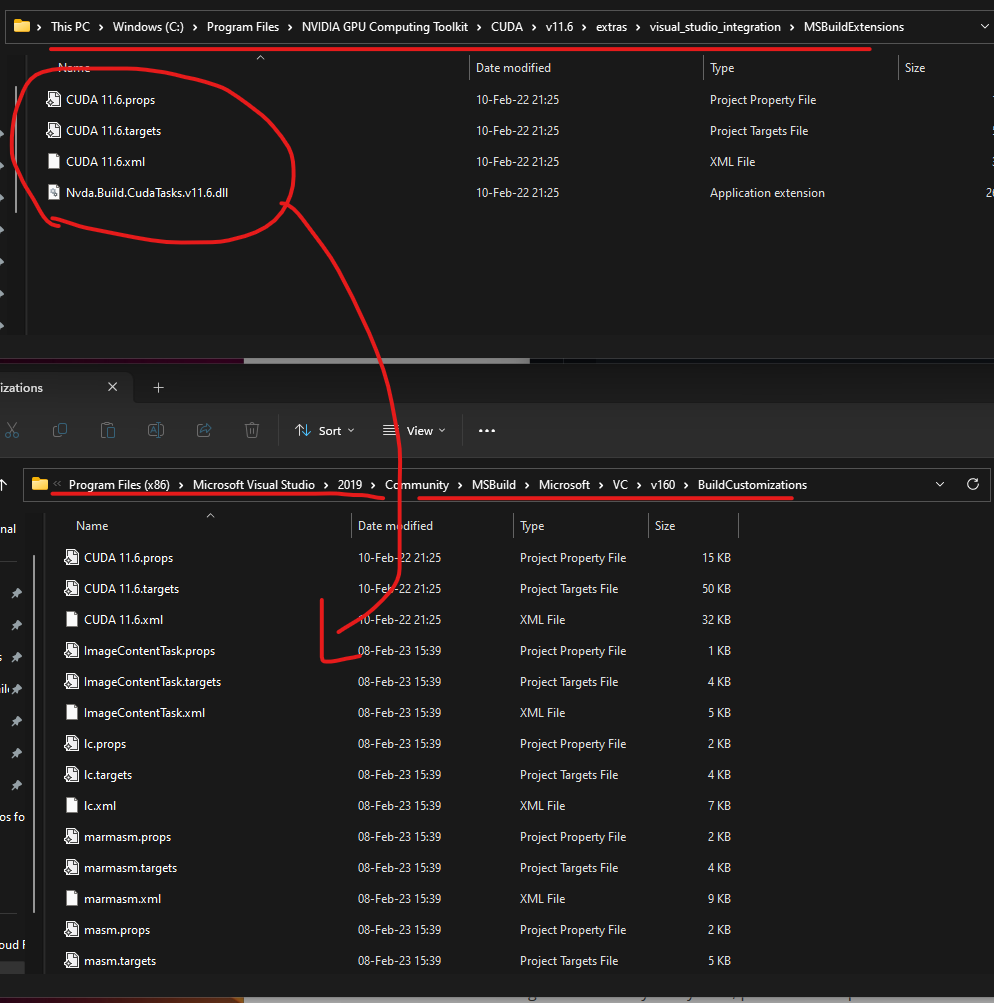
There will be 4 files with the same names. Click “replace the files in the destination”.
Step 6 Install Git
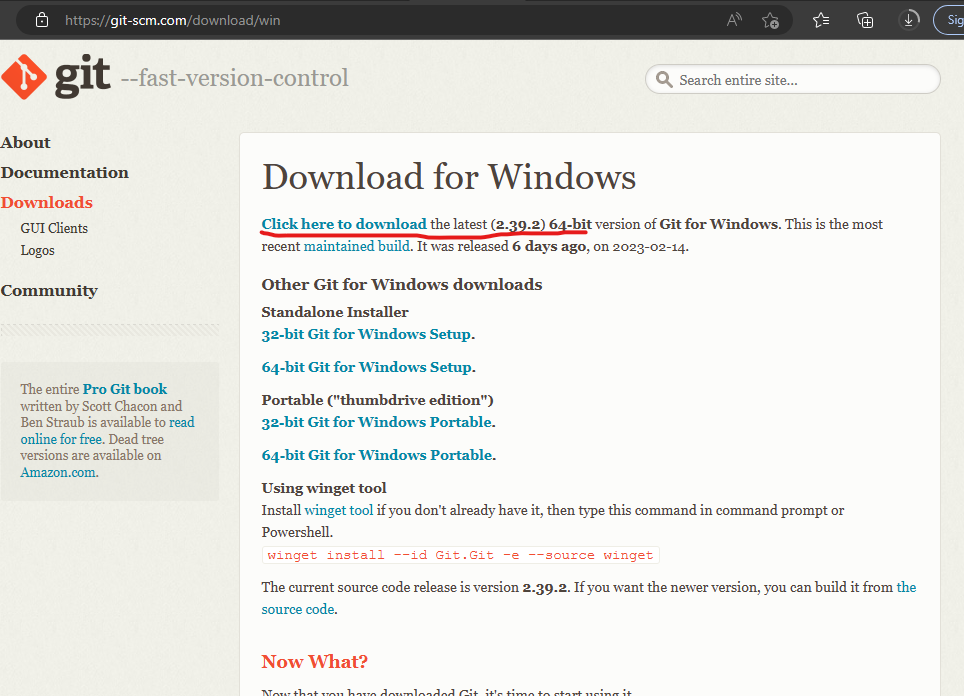
Download Git
Git is needed for downloading the source files for Instant NGP. If you already have git installed on your system, proceed to step 7. Download GIT and use all the default settings.
Step 7: Installing instant-ngp
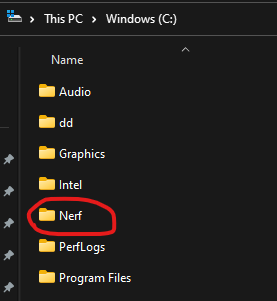
Create a folder that will contain your nerf files. For simplicity, I created a folder callled “Nerf” in my root directory.
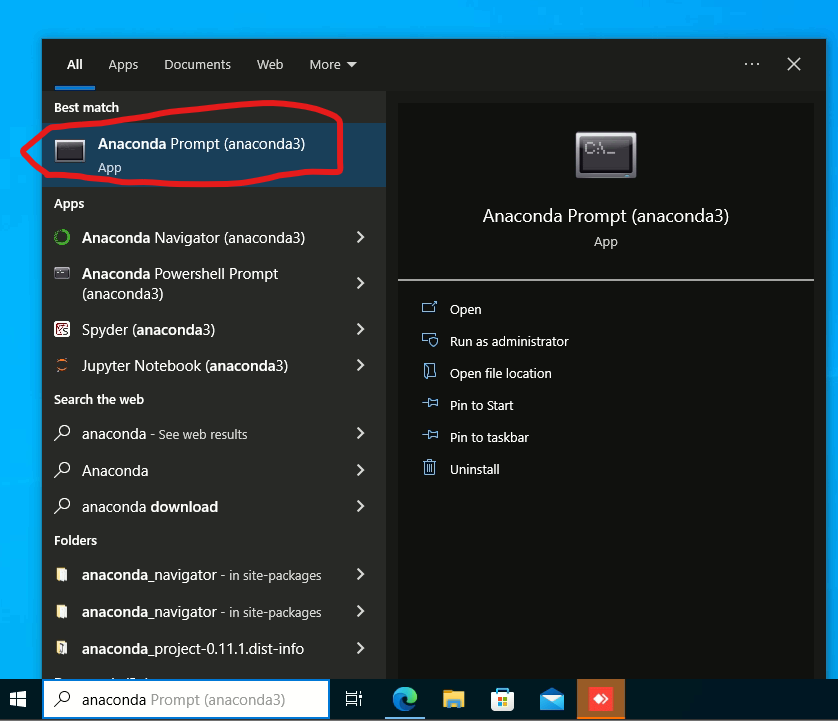
Open Anaconda prompt. You can find the Anaconda prompt by going to your windows search and typing in “Anaconda”
In the Anaconda prompt window, change to your NeRF directory.
cd c:\nerf
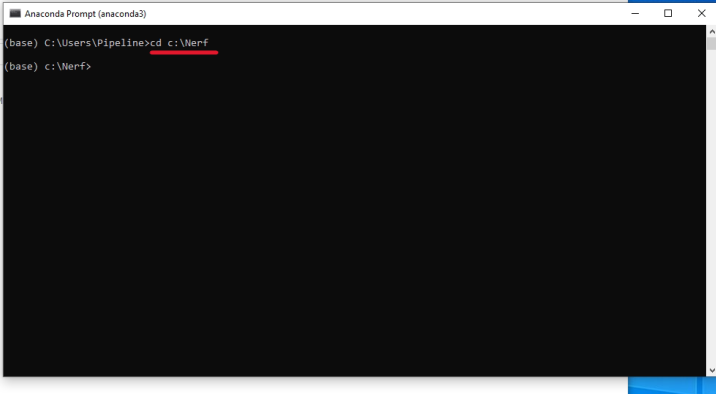
Now that we are in the Nerf directory, run the following command
$ git clone --recursive https://github.com/nvlabs/instant-ngp
This process may take 5 minutes. Once it’s finished change the newly installed directory
cd instant-ngp
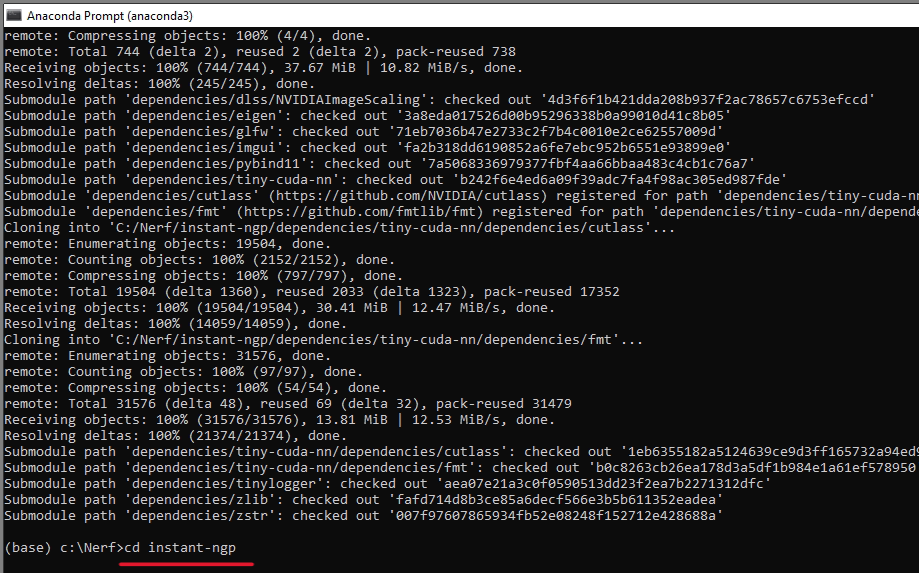
Step 8: Install Python
Python is a programming language needed for building our Instant NeRF application.
Now that we are in the c:\nerf\instant-ngp directory, type in the following command
conda install python=3.9
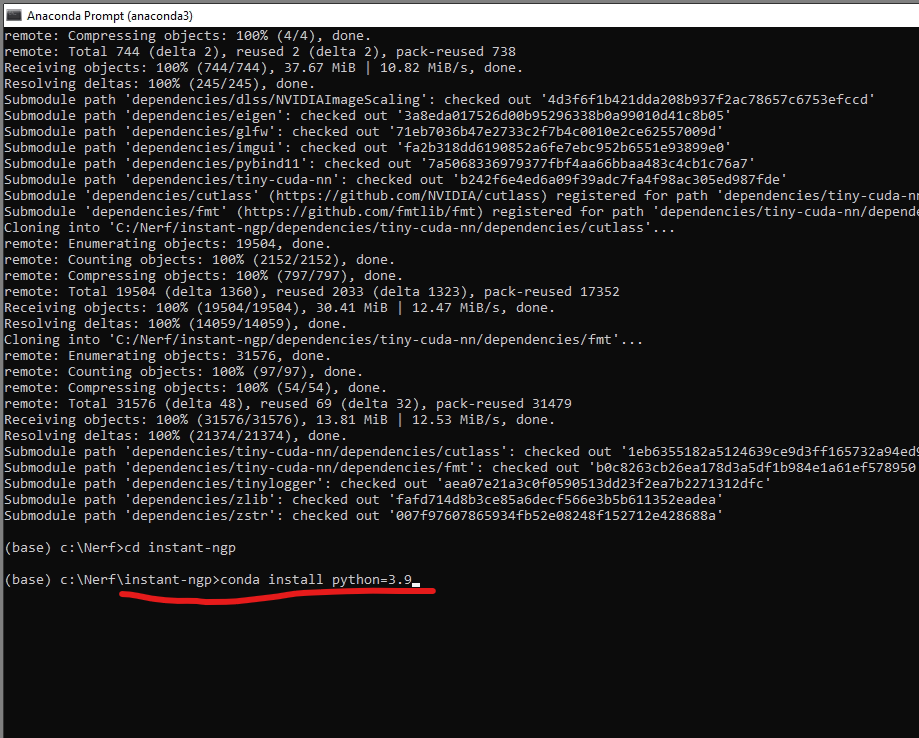
This step might take 3 minutes.
Step 9: Install CMAKE 3.22.2
CMake 3.22.2 is needed to build our Instant NeRF application.
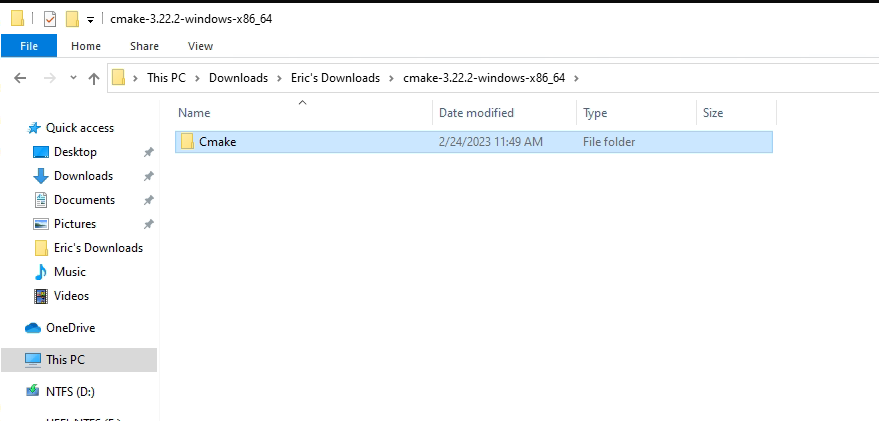
Download CMAKE and extract the files. Notice that when you unzip the files, you’ll see a folder called ‘cmake-3.22.2-windows-x86_64’ inside another folder of the same name.
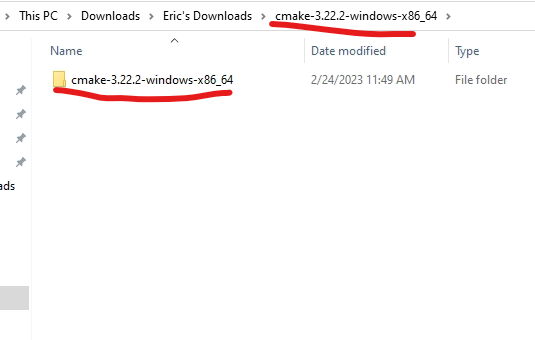
Rename the inner folder to simply “Cmake”
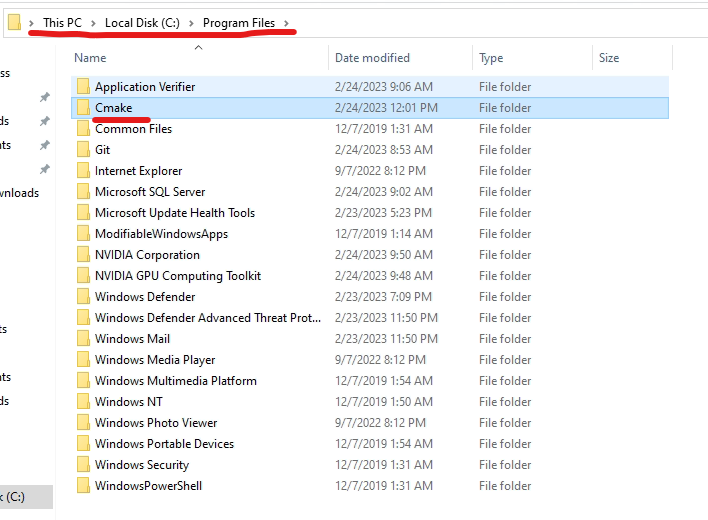
Move that Cmake folder to your C:\Program Files folder
Step 10: Build Instant-ngp
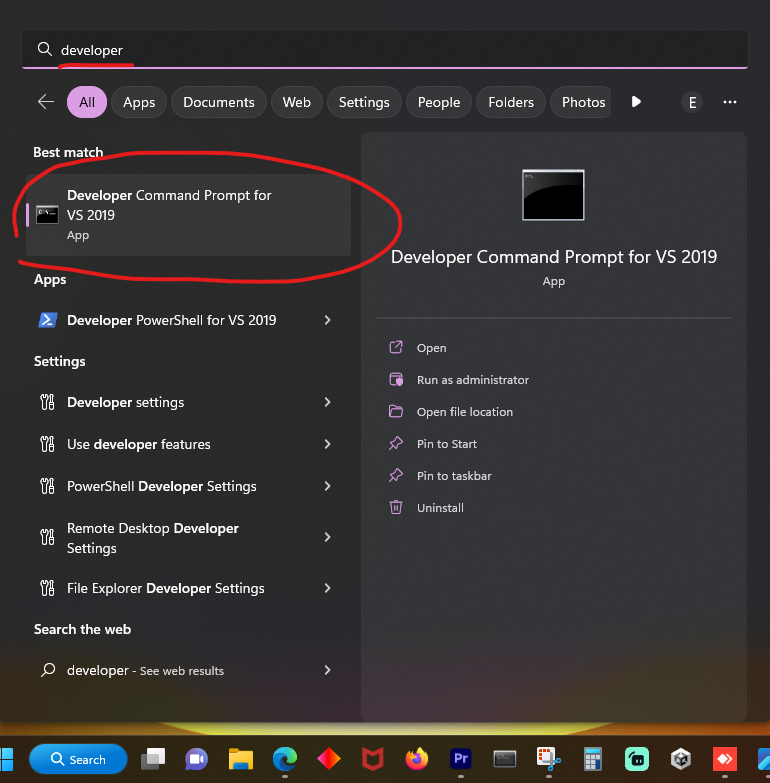
Open up Developer command prompt by going to your windows search bar and typing in “Developer” “click on Developer Command Prompt for VS 2019
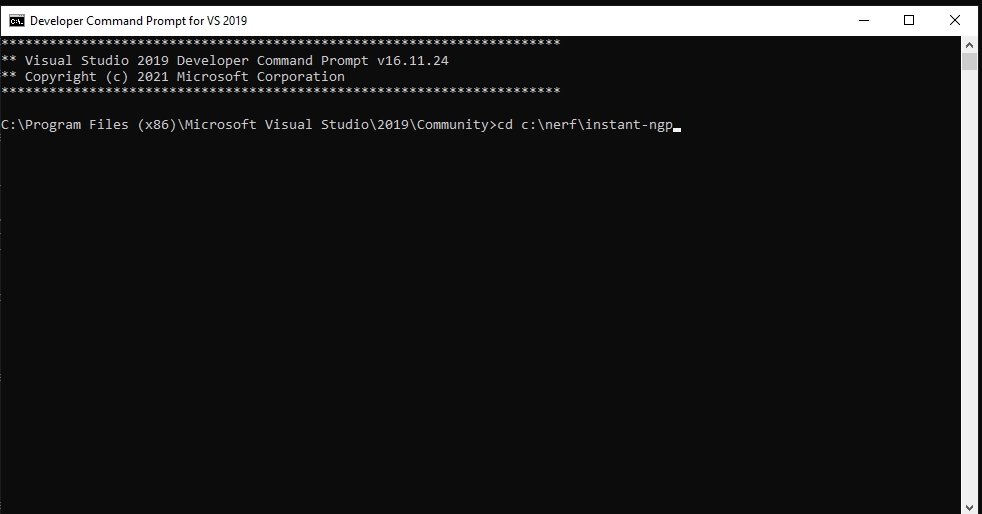
Change to the instant-ngp directory
cd C:\nerf\instant-ngp
Type in cmake . -B build
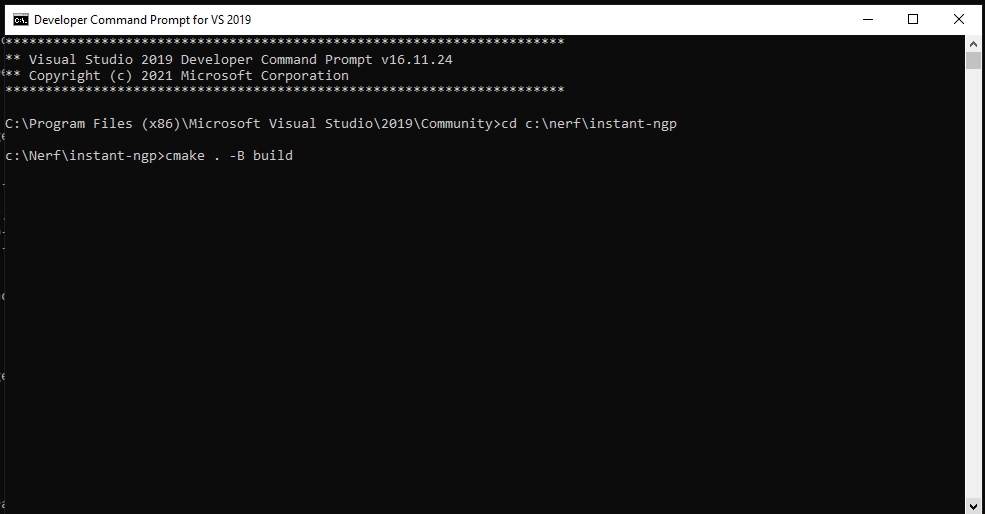
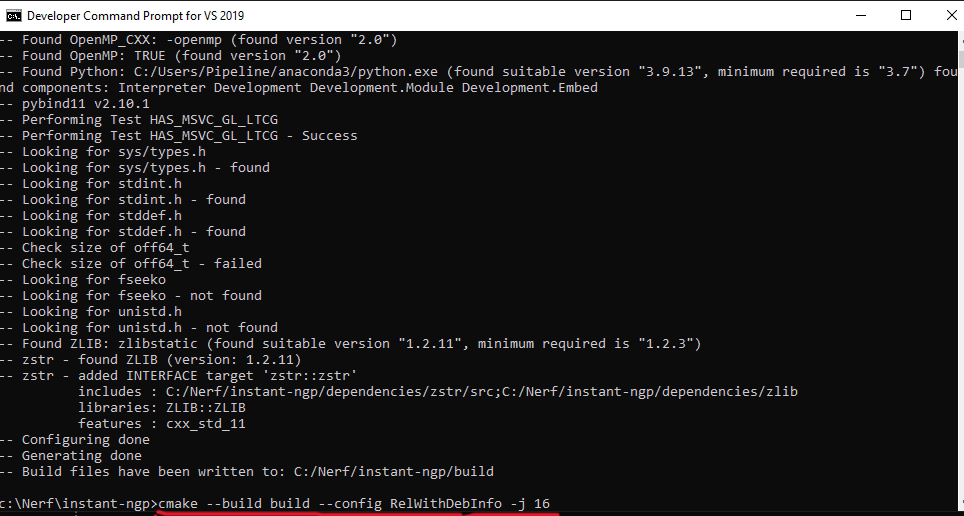
This process may take 5 minutes. When it’s finished. You will see another command prompt. Type in
cmake --build build --config RelWithDebInfo -j 16This process may take 10 minutes.
Step 11 Install COLMAP 3.7
COLMAP is the image-based 3D reconstruction pipeline that our application will use. This is the part of the application that takes our images and converts them into 3D.
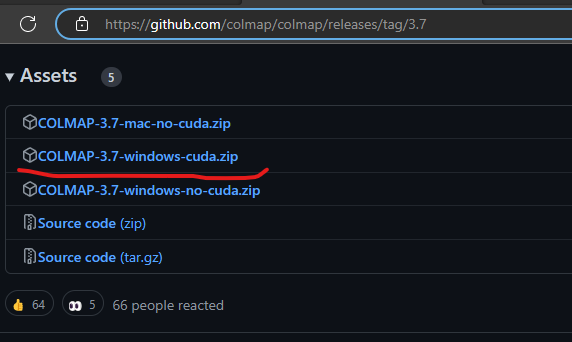
Download COLMAP 3.7. You may need to scroll allthe way down to the bottom of the page. Be sure to download “COLMAP-3.7-windows-cuda.zip”
Unzip the file. You’ll notice that there will be a folder nested inside another folder
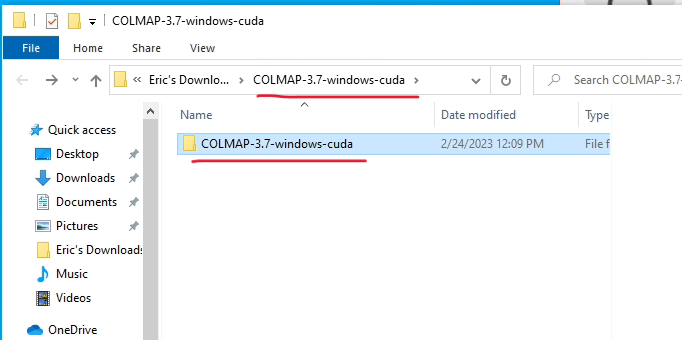
Rename the inner folder to simply COLMAP
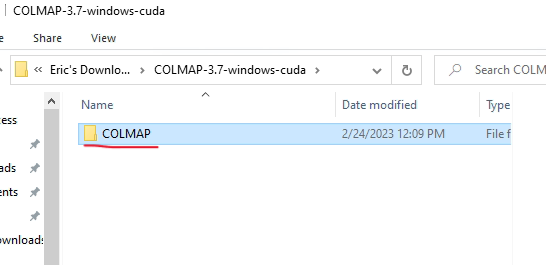
Now drag and drop the COLMAP folder into the C:\Nerf\instant-ngp directory
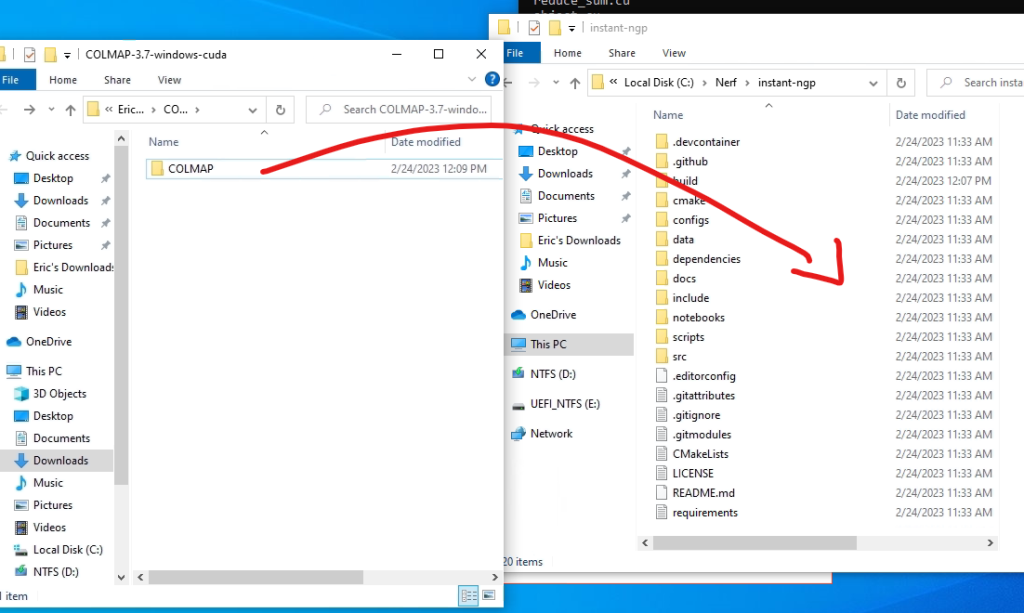
Step 12: Set System Environment Variables for COLMAP
Now we need to make sure the COLMAP commands are available to our program. Just like we did in a previous step, we will go to the environment variables. Search for environment in the windows search and click on “Edit the system environment variables”.
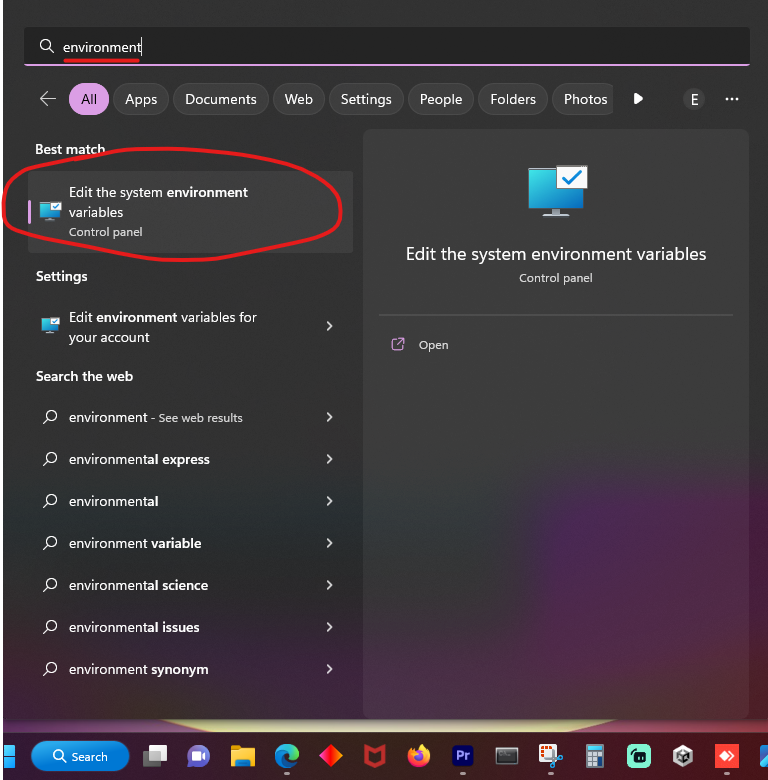
Click on “Environment Variables”. In the System variables section find and select “Path”. Click “Edit”.
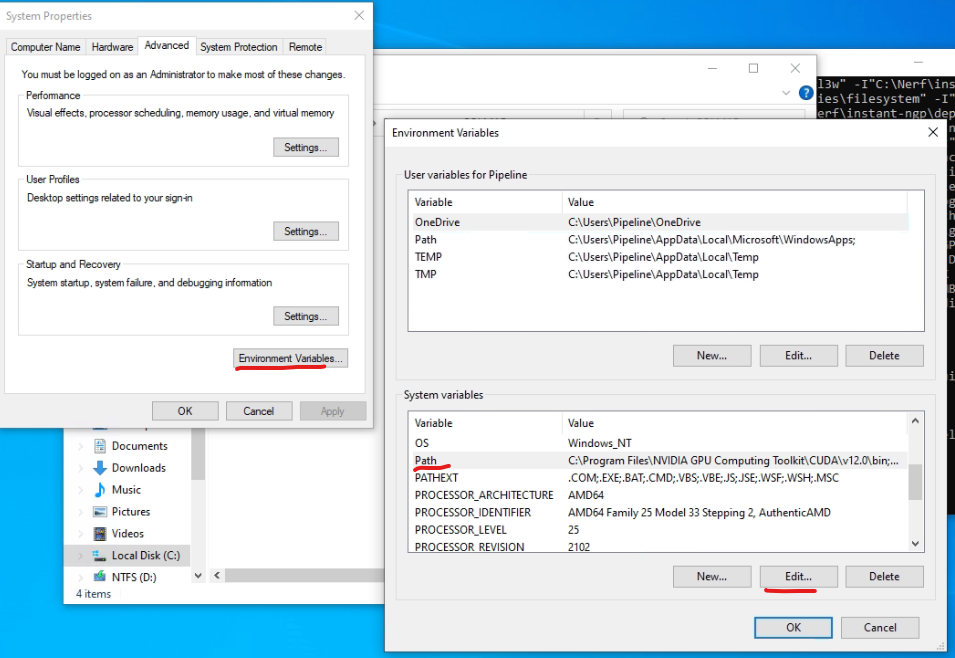
Click “New” to create a new environment variable.
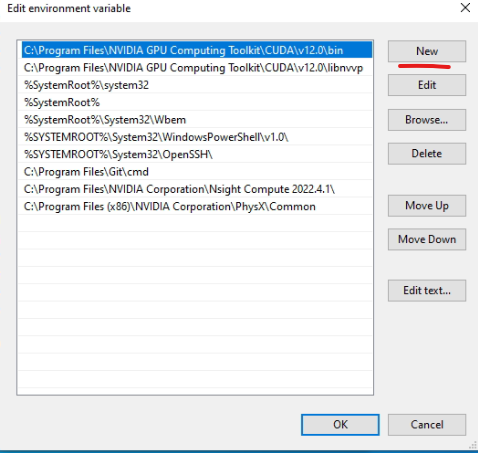
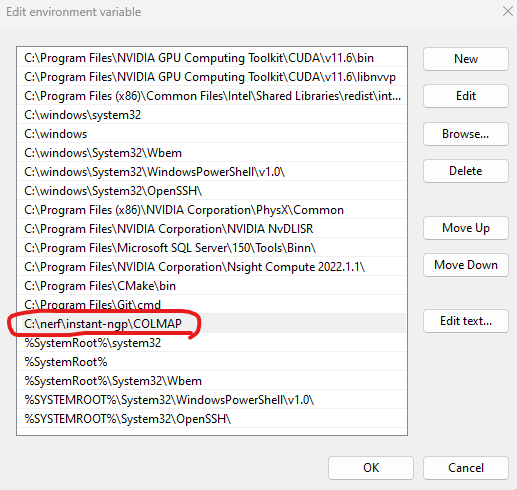
Type in C:\nerf\instant-ngp\COLMAP
This is the location of the COLMAP folder we just moved to the C:\nerf\instant-ngp\ directory.
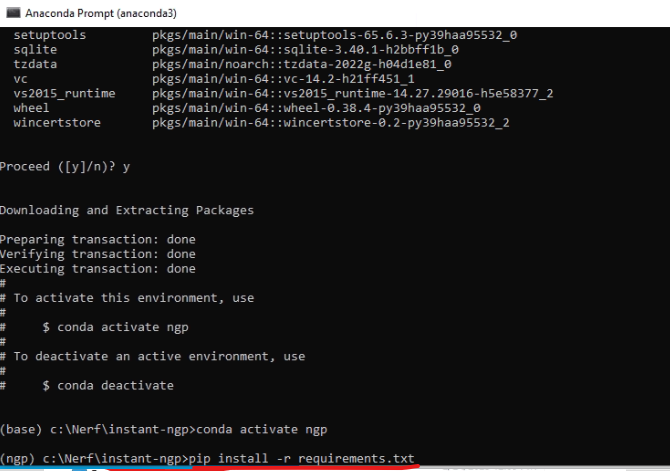
Ok now we’re at the final stretch. Go to your Anaconda command prompt. If you already have one open, you can use that. just make sure you are in the c:\nerf\instant-ngp folder. Type in the following command
conda create -n ngp python=3.9
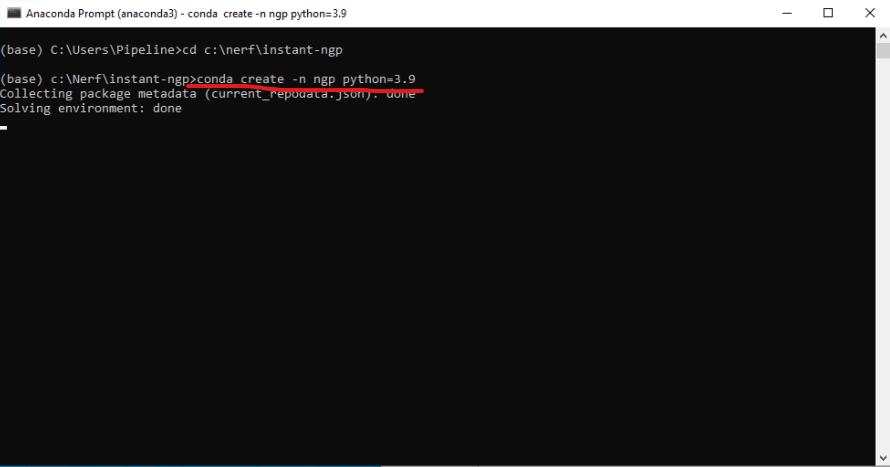
It will finish after 1 minutes and a command prompt will be available. Type in the following command:
conda activate ngp
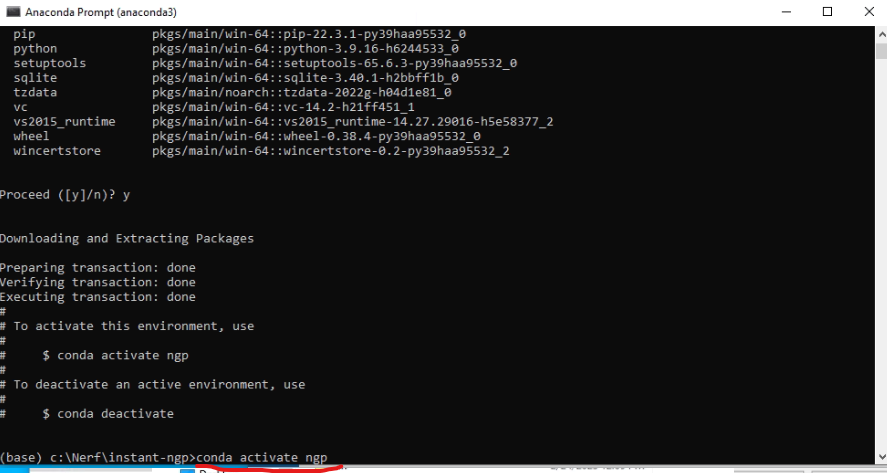
When it’s finished, type in the following command
pip install -r requirements.txt
Part III: Test the Program
Go Try it out!
This tutorial is based on the documentation & tips from NVlabs, bycloudai and EveryPoint